구글 로그인을 구현중에 에러를 만났다. 

"idpiframe_initialization_failed" 코드 작성 후 개발자 도구 창을 열어보니 아래와 같은 에러가 뜨고있다!! @@ 

"idpiframe_initialization_failed", details: "Not a valid origin for the client: 
http://localhos…itelist this origin for your project's client ID."
details: "Not a valid origin for the client: http://localhost has not been whitelisted for
client ID .apps.googleusercontent.com. Please go to https://console.developers.google.com/ and whitelist this origin for your project's client ID."


구글링해본 결과 여러개의 해결방안이 있었다. 

1. 캐시 지우기  - Chrome : 설정 → 고급 → 인터넷 사용 기록 삭제 → 캐시 된 이미지 및 파일 

->  가장 해결이 많이 되었다는 답변을 받은 해결방법이었다. ( 하지만 나는 해결안됨)


2. Google 개발자 콘솔 API에서 출처를 허용 목록에 추가하기.


-> 이건 뭘하라는건지 잘 모르겠다.. 


3. "쿠키 및 기타 사이트 데이터 표시"에서 accounts.google.com 쿠키를 "허용"하기 (페이지를 새로 고침 한 후).

4. 저에게는 설정> 사이트 설정> 쿠키> "차단 된 타사 쿠키"가 선택 해제되어 있어야했습니다.

-> 누구는 허용하니 되고 누구는 해제하니 된다고한다. 나는 해결 안됨.ㅎㅎ;; 


5. 나의 해결방안!! 

인증 정보에서 승인된 리다이렉션에 localhost:8080/callback 으로 해뒀던걸 "localhost:8080" 로 변경하니 잘되었다. 
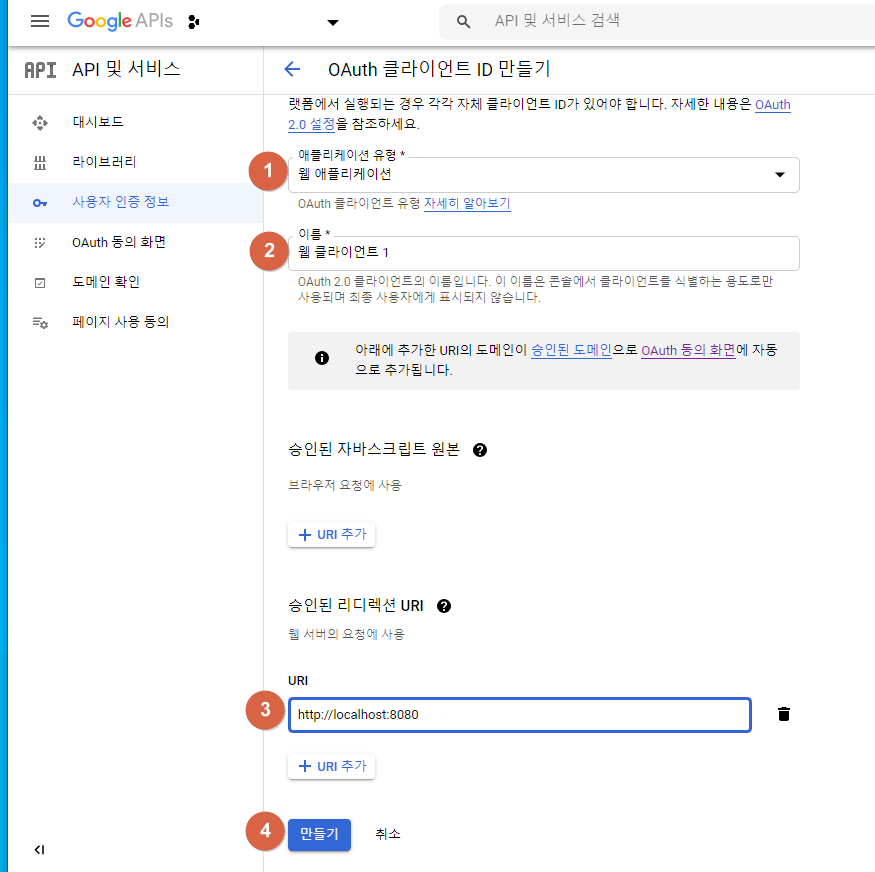
 

흠.. 왜인지는 잘 모르겠지만 뭔가 콜백받는데 있어 url 설정이 영향이 있어보인다. 

그래도 안될땐 정신건강을 위해

구글 콘솔에서 새로운 프로젝트를 만들어 다시 해보는것도 방법인듯 하다~


지난 포스팅에서 로그인 기능을 사용할 준비를 했다면 

이제 직접 구현해보자! 

< 지난 포스팅! > 


[Google 로그인] #1 개발자 콘솔 가입!

1. 구글 개발자 콘솔에 로그인한다. console.developers.google.com/ Google Cloud Platform 하나의 계정으로 모든 Google 서비스를 Google Cloud Platform을 사용하려면 로그인하세요. accounts.google.com 2. 접..

genie-dev.tistory.com


1.  로그인할 페이지를 만들고 (HTML or jsp ... 등 자신이 사용중인 페이지)  상단에 위 태그를 넣어준다. 

수정할 부분은 클라이언트 ID를 입력하는 부분인데 앞 포스팅을 확인하면 알 수 있다! 

(**  중괄호 {} 는 지워야한다 ** ) 

<script src="https://apis.google.com/js/platform.js" async defer></script>
<meta name="google-signin-client_id" content="{발급받은 클라이언트 ID}apps.googleusercontent.com"></meta>


2. 로그인/아웃 버튼을 생성!  

로그인 버튼을 보면 data-onsuccess 엔 로그인에 성공하는 경우 호출할 함수명을 입력해준다. 

<!-- 로그인 버튼 --> 
<div class="g-signin2" data-onsuccess="onSignIn"></div>

<!-- 로그아웃 버튼 --> 
<a href="#" onclick="signOut();">Sign out</a>


3. 스크립트 작성! 

 // 로그인에 성공하면 내 정보가 찍힌다. 
 // 이정보를 가지고 시큐리티등등 보안을 더한 로그인을 구현하면 된다! 
 function onSignIn(googleUser) {
   var profile = googleUser.getBasicProfile();
   console.log('ID: ' + profile.getId()); // Do not send to your backend! Use an ID token instead.
   console.log('Name: ' + profile.getName());
   console.log('Image URL: ' + profile.getImageUrl());
   console.log('Email: ' + profile.getEmail()); // This is null if the 'email' scope is not present.
 }
 
 // 로그아웃에 사용할 버튼 
function signOut() {
   var auth2 = gapi.auth2.getAuthInstance();
   auth2.signOut().then(function () {
   	self.location="/logout";
   });
 }


※  완성된코드~~!!

나의 포스팅 순서대로 따라왔다면 쉽게 구현가능할것이다! ㅎㅎ ~~

<!DOCTYPE html>
<html>
<head>
    <meta charset="UTF-8">
    <script src="https://apis.google.com/js/platform.js" async defer></script>
	<meta name="google-signin-client_id" content="{발급받은 클라이언트 ID}.apps.googleusercontent.com"></meta>
    <title>로그인 페이지</title>
</head>
<body>
    <h1>로그인</h1>
    <hr>

        
	<!-- 구글 로그인 추가 -->
	<div class="g-signin2" data-onsuccess="onSignIn"></div>
    <a href="#" onclick="signOut();">Sign out</a>


    <script src="/resources/css/bower_components/jquery/dist/jquery.min.js"></script>
	<script src="/resources/css/bower_components/bootstrap/dist/js/bootstrap.min.js"></script>
	<script src="/resources/js/utils/easy_ui/jquery.easyui.min.js"></script>
	<script src="https://apis.google.com/js/platform.js" async defer></script>
		
    <script>
 		   
       function onSignIn(googleUser) {
      	  var profile = googleUser.getBasicProfile();
      	  console.log('ID: ' + profile.getId()); // Do not send to your backend! Use an ID token instead.
      	  console.log('Name: ' + profile.getName());
      	  console.log('Image URL: ' + profile.getImageUrl());
      	  console.log('Email: ' + profile.getEmail()); // This is null if the 'email' scope is not present.
      	}
       
       function signOut() {
           var auth2 = gapi.auth2.getAuthInstance();
           auth2.signOut().then(function () {
               self.location="로그아웃할 url";
           });
       }
        

    </script>
</body>
</html>


<다음포스팅>


[Google 로그인] #3 백엔드 코드작성!

<이전포스팅> [Google 로그인] #1 개발자 콘솔 가입! 1. 구글 개발자 콘솔에 로그인한다. console.developers.google.com/ Googl" data-og-host="genie-dev.tistory.com" data-og-source-url="https://genie-dev.t..

genie-dev.tistory.com

참고 developers.google.com/identity/sign-in/web/sign-in#before_you_begin

1. 구글 개발자 콘솔에 로그인한다. 

console.developers.google.com/


Google Cloud Platform

하나의 계정으로 모든 Google 서비스를 Google Cloud Platform을 사용하려면 로그인하세요.

accounts.google.com


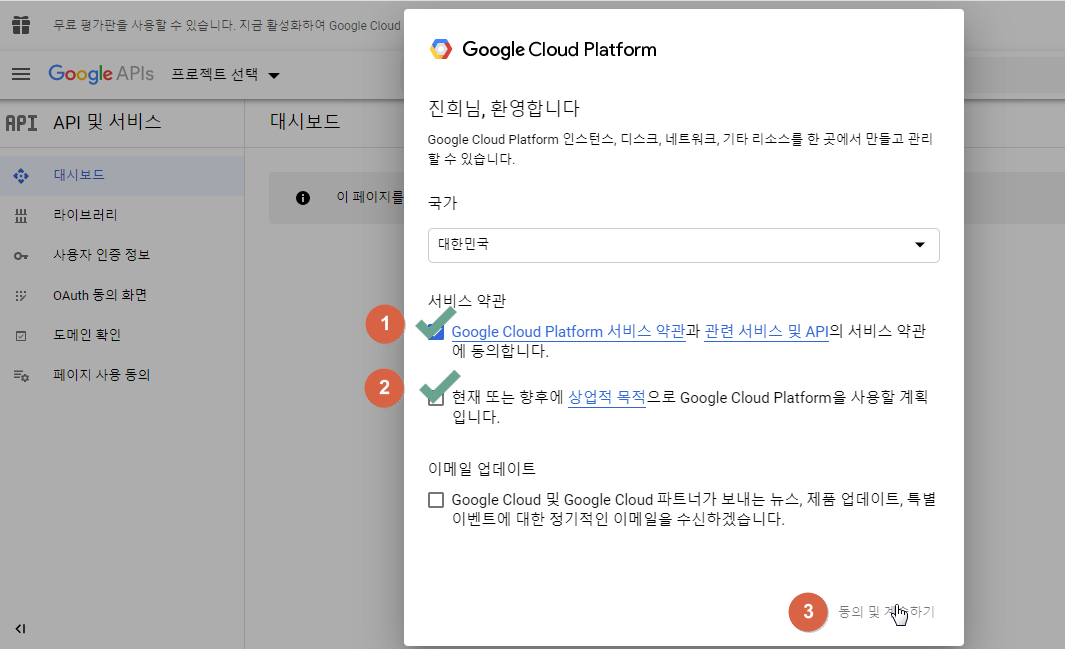
2.  접속하면 동의란이 뜨는데 체크 후 계속하기 버튼을 누른다. 


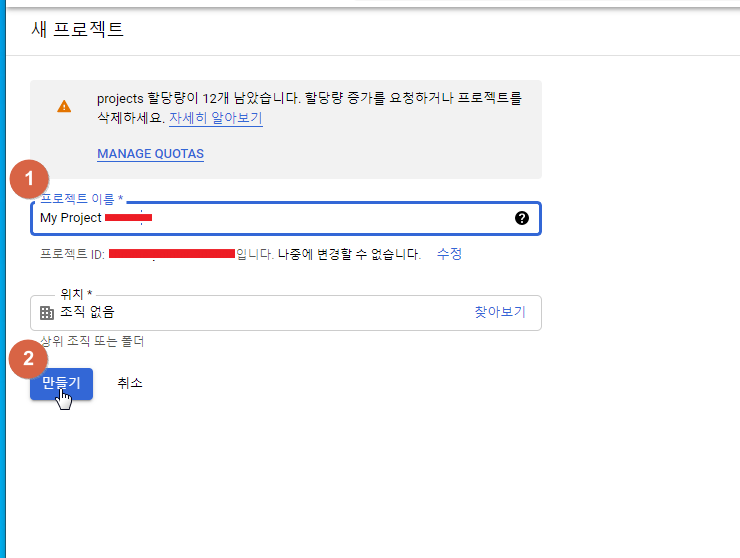
3. 프로젝트를 생성해준다. 


4. 프로젝트 이름을 입력하고 만들기! 


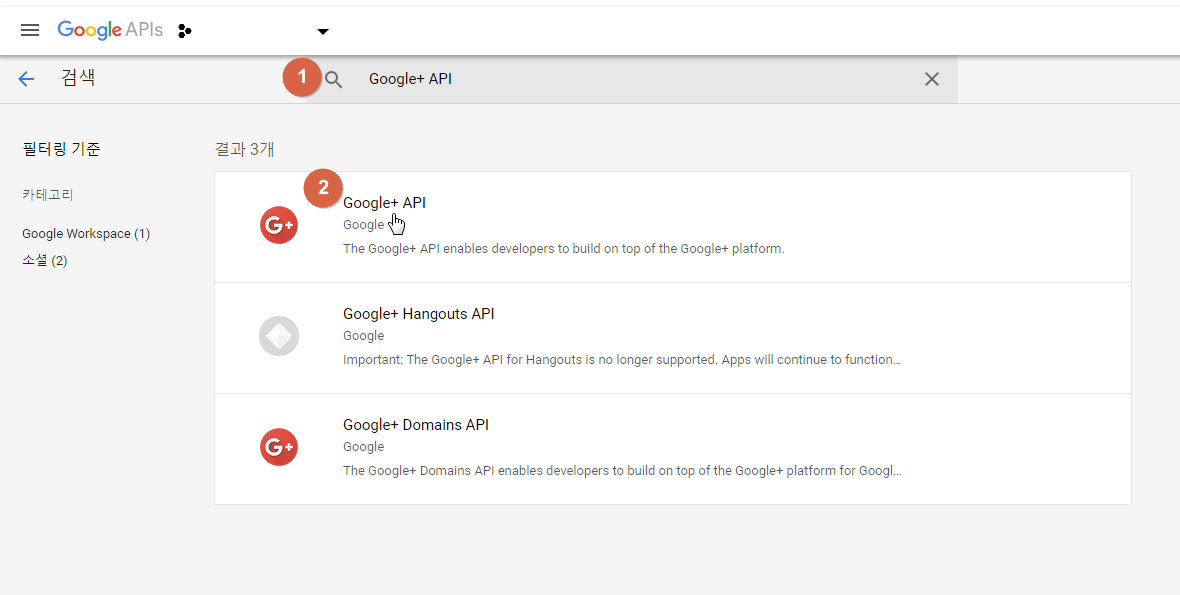
5. 검색란에 google api를 검색해서 클릭한다. 


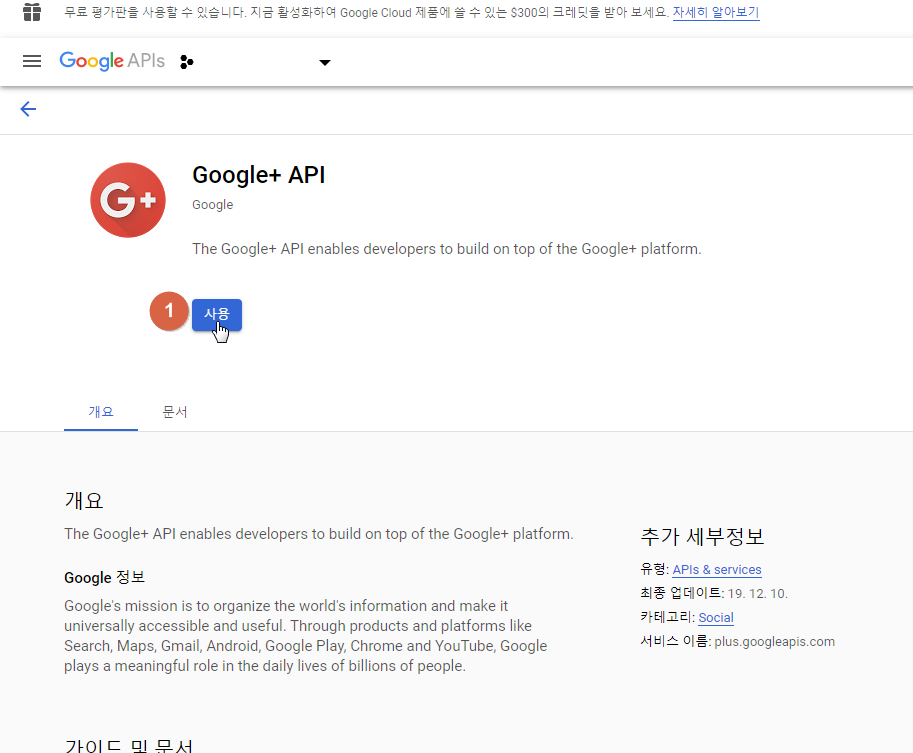
6. API 사용버튼 클릭! 


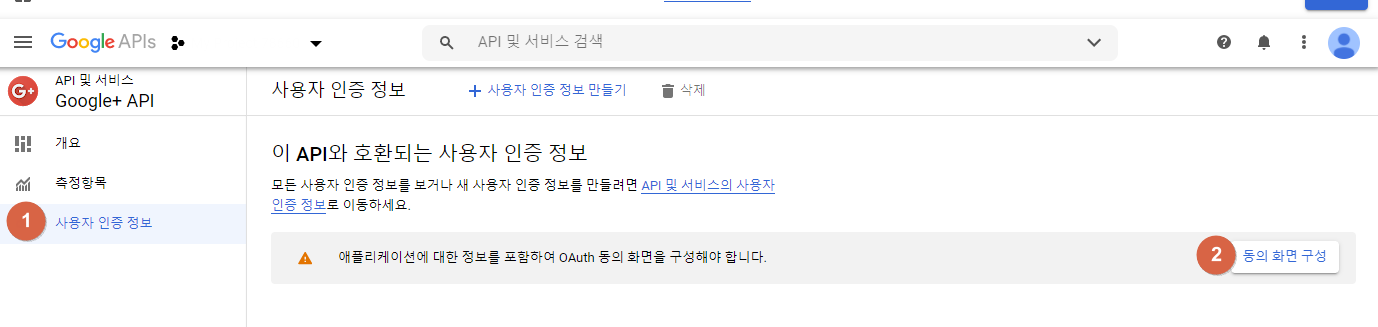
7. 좌측 메뉴에서 사용자 인증정보 클릭-> 동의화면 구성 클릭


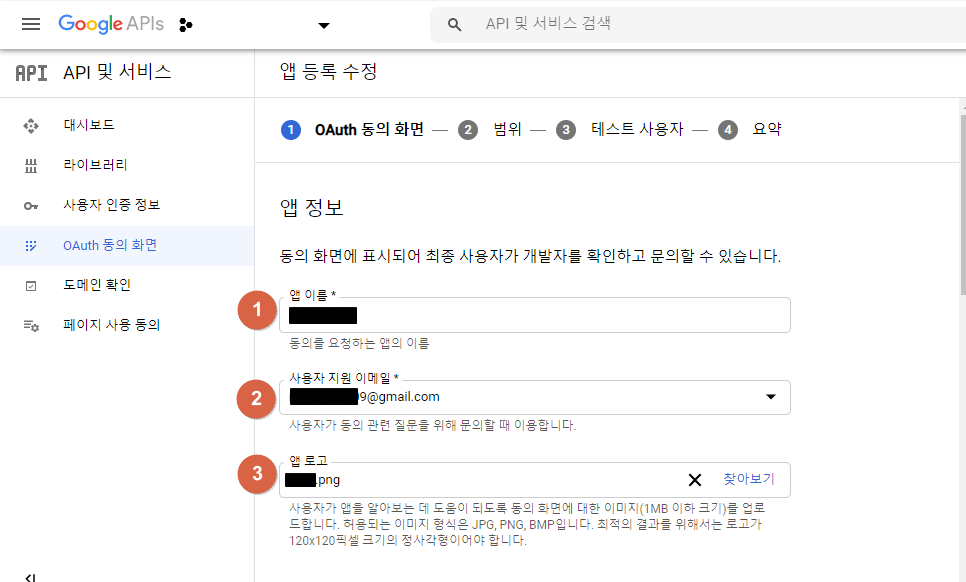
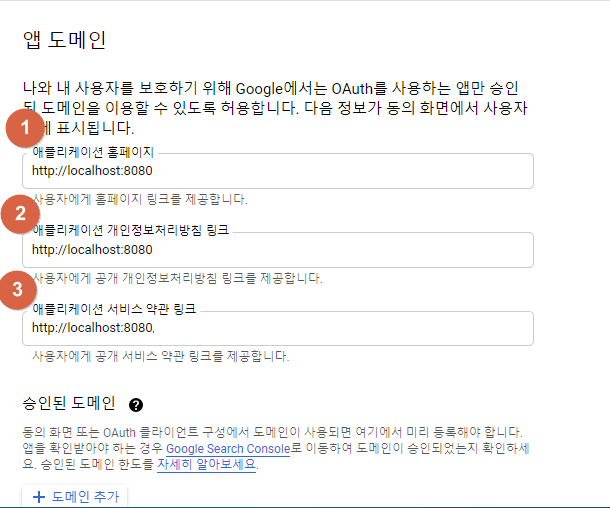
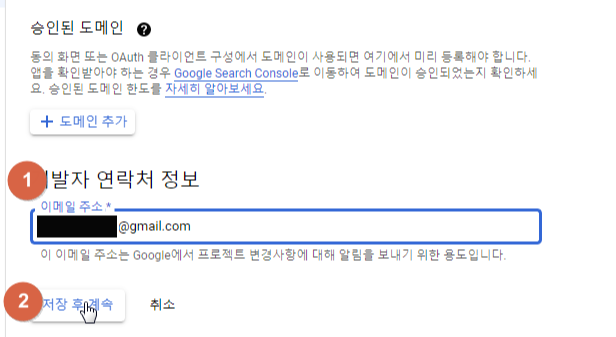
8.  앱이름과 이메일, 로고 파일등을 입력한다. 테스트용으로 사용할거라 localhost로 설정! 


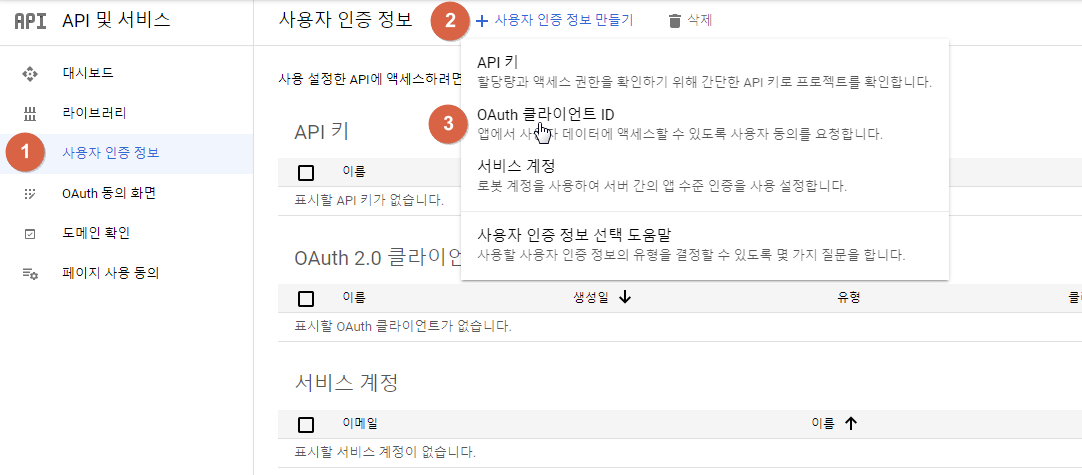
9.  좌측 메뉴에 사용자 인증정보 메뉴 > 사용자 인증정보 만들기 > 클라이언트 ID 클릭 


10. 양식 작성 


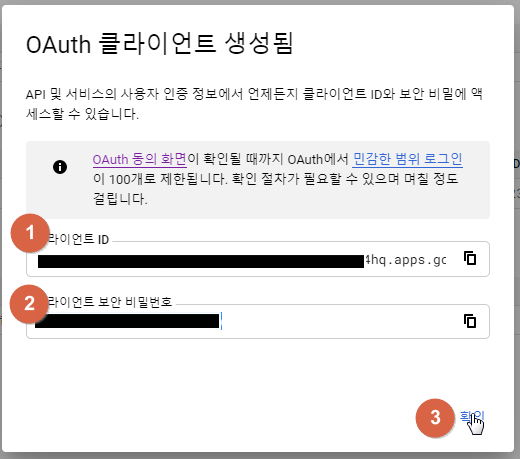
11. 만들기를 누르면 키가 생성되는데 잘 저장해둔다! 

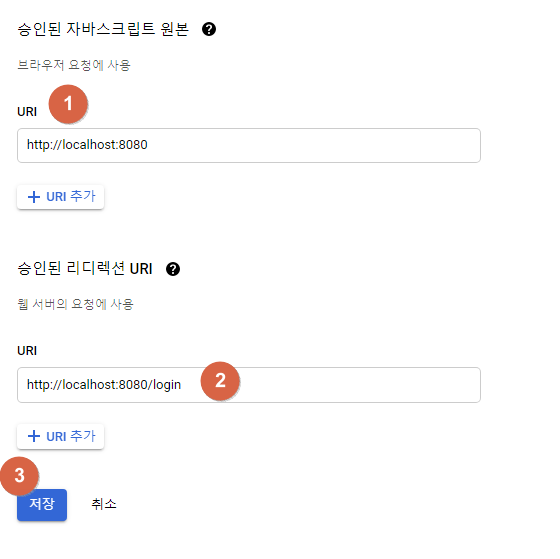
12.  리다이렉션 받을 uri를 적어주면된다~ 

+ Recent posts